


If you no longer need a paid Figma plan, you can cancel your subscription directly from your Figma account settings. The process is straightforward and only takes a few clicks.
Whether you are moving to another design platform, taking a break from Figma, or simply want to reduce your monthly expenses, here is how to cancel your Figma subscription.
1
Log In to Your Figma Account and Click Admin
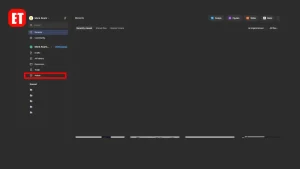
Start by logging in to your Figma account using your usual account details.
Once you are signed in, look at the left-hand navigation menu and click Admin. This will take you to the area where you can manage your team and subscription settings.
2
Click Settings
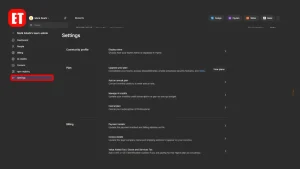
Inside the Admin area, find Settings in the navigation menu and click it.
The Settings page contains several options for managing your Figma organization, including your current plan and billing-related settings.
3
Click Cancel Plan
3
Click Cancel Plan
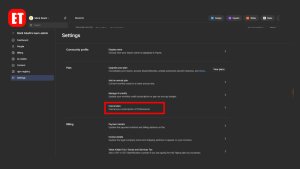
Once you are on the Settings page, scroll to the Plan section.
Look for Cancel plan, which appears under your current subscription. Click it to begin the cancellation process.
Figma may show you information about what will happen to your account and the features you will lose after leaving the paid plan.
4
Click Downgrade to Starter
4
Click Downgrade to Starter
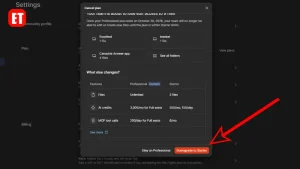
After selecting the cancellation option, Figma will display a confirmation screen with information about your current Professional plan and the Starter plan.
If you want to continue with the cancellation, click Downgrade to Starter.
Take a moment to review the information shown on the screen, particularly if you have files, team members, or features that depend on your current paid plan.
5
Click Cancel Plan on the Pop-Up
5
Click Cancel Plan on the Pop-Up
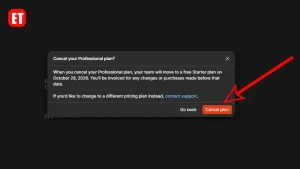
A final confirmation window will appear asking you to confirm the cancellation.
Click the Cancel plan button on the pop-up to complete the process.
Once you confirm the cancellation, your Figma subscription will be canceled and your team will move to the Starter plan according to the date shown by Figma.
Your Figma Subscription Is Now Canceled
That’s it. You have completed the five steps needed to cancel your Figma subscription.
Remember to review the information Figma displays during cancellation because the exact date when your paid plan ends can depend on your billing cycle. If you have important files or are using paid features, make sure you understand what will change when your account moves to the Starter plan.
If you have any questions about canceling your Figma subscription or run into a problem during the process, don’t forget to drop a comment below.
Credit: Article and image design by Mark Abahi.

Erime Editor is the official editorial account of ErimeToday. Articles published under this name are created, reviewed, and managed by the ErimeToday editorial team to deliver helpful guides, technology tips, relationship advice, daily accurate word game answers, anime updates, gaming content, manga insights, news, and useful resources for readers around the world.



If this post helped you, support us 👇