

It can be very frustrating when you are enjoying a game on your PC and suddenly everything stops responding. The screen freezes, the mouse stops working inside the game, and the close button does nothing. This situation happens with many games, whether you are playing a simple puzzle game or a large PC title downloaded from a launcher like Steam.
Recently, a reader contacted us saying they bought a new tablet and noticed that their game became frozen and they could not exit it. Problems like this are common and usually not caused by the game alone. In most cases, the issue is related to system memory, software glitches, or background applications.
The good news is that there are several simple ways to close a frozen game without damaging your computer or losing your system progress. In this guide, the ErimeToday tech desk explains the easiest methods Windows users can try.
The Quickest Way to Close a Frozen Game
One of the fastest tricks most PC gamers use is the keyboard shortcut Alt + F4. This command tells Windows to close the currently active application. If the game is only partially frozen, pressing this combination may immediately close it and return you to the desktop.
However, this method does not always work when the game becomes completely unresponsive. When that happens, you will need to use a stronger method provided by Windows.
Using Task Manager to Force Close the Game
If the game refuses to close normally, Task Manager is the most reliable solution. Task Manager allows you to see every program running on your computer and gives you the option to force them to stop.
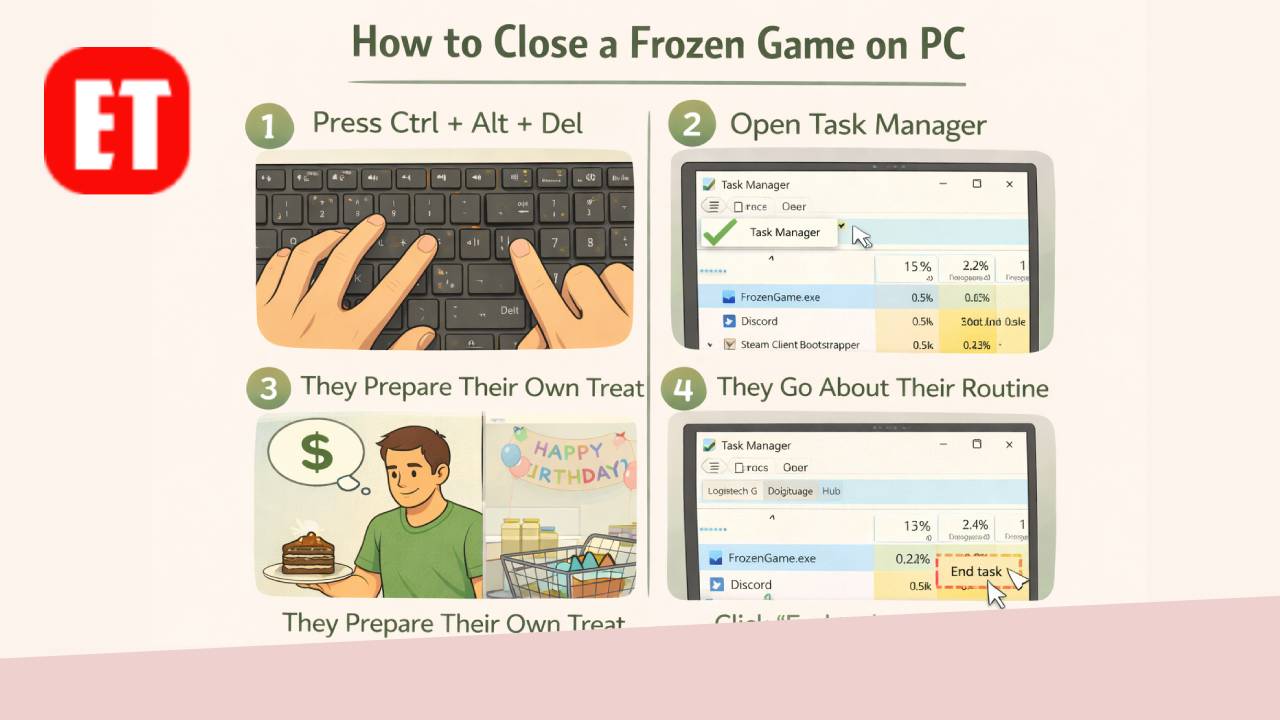
To open Task Manager quickly, press Ctrl + Shift + Esc on your keyboard. Once the window appears, you will see a list of running applications. Find the name of the frozen game, click on it once, and then select End Task. Windows will immediately stop the program and free up the system resources that were being used by the game.
Most frozen games can be closed successfully using this method.
When the Screen Is Completely Stuck
In some situations the game may freeze in full-screen mode, preventing you from opening Task Manager or accessing the desktop. When this happens, Windows still provides another option.
Press Ctrl + Alt + Delete on your keyboard. This command opens a security screen where you can choose Task Manager. From there you can locate the game process and force it to close.
This trick is particularly helpful when a game locks the entire screen and you cannot switch to another application.
Switching Away From the Game
Another simple trick that sometimes works is switching to another window. Pressing Alt + Tab allows you to move between running applications. If Windows responds, you can switch to another program and then close the frozen game from the taskbar or Task Manager.
While this method does not always work with heavily frozen games, it is still worth trying before restarting the computer.
Restarting the Computer as a Last Option
If none of the previous methods work and the entire system becomes unresponsive, restarting your computer may be necessary. Holding the power button for several seconds will shut down the machine and allow you to start fresh.
Although restarting solves the issue, it should usually be considered the last option because it closes all running programs.
Why Games Freeze on PC
Game freezes can happen for several reasons, and they are not always caused by the game itself. Sometimes the computer simply runs out of memory when too many applications are open. In other cases, outdated graphics drivers or software conflicts can cause a game to stop responding.
Overheating can also lead to temporary freezing, especially when playing demanding games on a system with limited cooling. Keeping your computer updated and closing unnecessary background programs can often reduce the chances of crashes.
Final Thoughts
A frozen game on PC can feel like a major problem, but in reality it is usually easy to fix. Most of the time, simply using Task Manager or a keyboard shortcut will close the game and return your computer to normal operation.
If the issue happens frequently with a specific game, checking updates, reinstalling the game, or updating your graphics drivers may help prevent it from happening again.
For more gaming fixes, troubleshooting guides, and tech updates, keep following ErimeToday.

Erime Editor is the official editorial account of ErimeToday. Articles published under this name are created, reviewed, and managed by the ErimeToday editorial team to deliver helpful guides, technology tips, relationship advice, daily accurate word game answers, anime updates, gaming content, manga insights, news, and useful resources for readers around the world.