


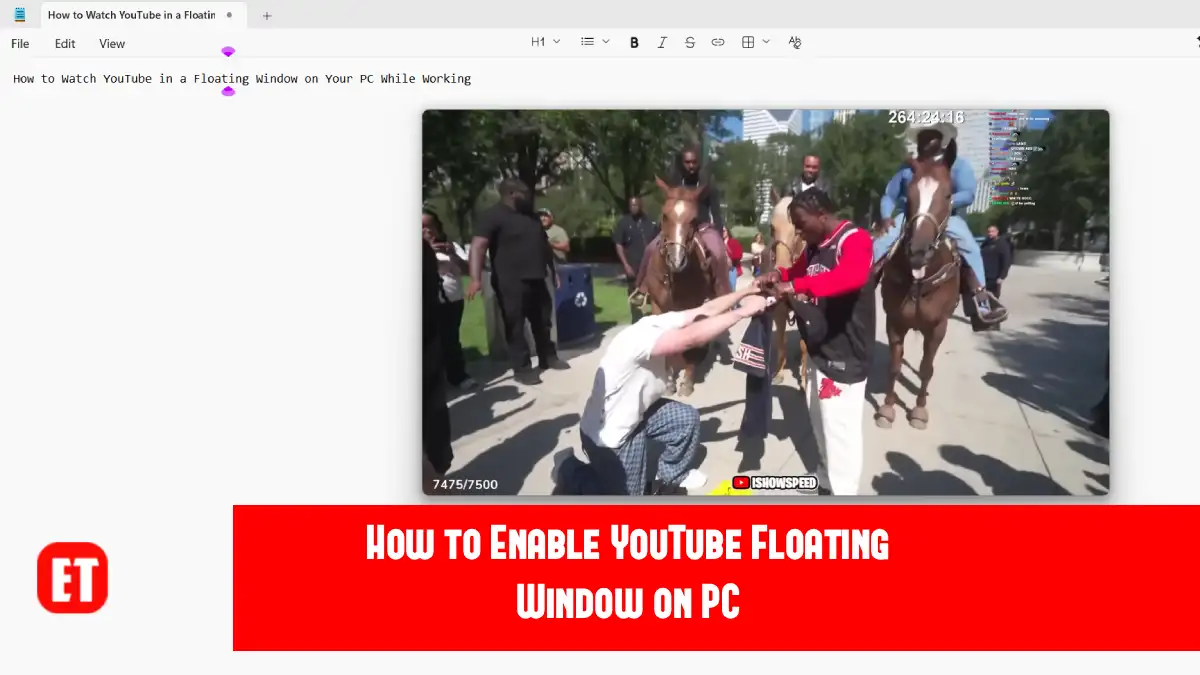
If you’re someone who enjoys listening to podcasts, watching tutorials, or keeping up with your favorite YouTuber while working, constantly switching between browser tabs can quickly become frustrating. Whether you’re replying to emails, writing documents, browsing the web, or editing photos, having to return to the YouTube tab every few minutes interrupts your workflow.
Fortunately, there’s an easier way.
Most modern browsers, including Google Chrome, Microsoft Edge, and Brave Browser, include a built-in Picture-in-Picture feature that allows any YouTube video to play inside a small floating window. This miniature player stays on top of your other applications, letting you continue watching without keeping the YouTube tab open.
The feature has been available for years, yet many PC users still don’t know it exists because it’s hidden behind a simple trick involving the right mouse button. Once you learn it, you’ll probably use it every day.
In this guide, I’ll show you exactly how to enable the floating YouTube player using IShowSpeed’s latest stream as an example, although the same steps work with any YouTube video or live broadcast.
Step 1: Open Your Preferred Browser
The Picture-in-Picture feature works in most Chromium-based browsers. For this tutorial, you can use Google Chrome, Microsoft Edge, or Brave Browser.
Launch your preferred browser on your computer before continuing to the next step.
Step 2: Visit YouTube
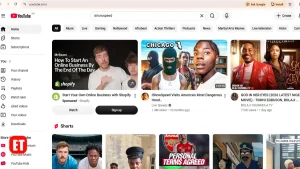
Once your browser is open, visit YouTube and search for the video you want to watch.
For this tutorial, we’re using one of IShowSpeed’s live streams because it clearly demonstrates that the feature works with both live broadcasts and regular videos.
After finding your video, click Play and let it begin playing normally.
Step 3: Right-Click the Video Once
Here’s where most people get confused.
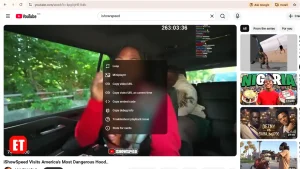
When you right-click on a YouTube video for the first time, YouTube displays its own context menu. You’ll see options such as Copy Video URL, Copy Embed Code, Loop, and Stats for Nerds.
This menu belongs to YouTube itself—not your browser.
At this point, don’t click anywhere else.
Step 4: Right-Click the Video Again
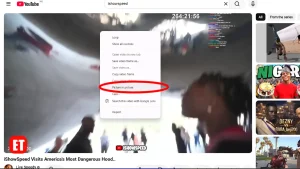
With the first menu still visible, right-click on the video a second time.
This time, you’ll see your browser’s native video menu instead of YouTube’s menu.
Among the available options, you’ll notice Picture in Picture.
Click it once.
The moment you do, the video disappears from the webpage and instantly opens inside a small floating player that remains visible even when you switch to another application.
It’s a hidden shortcut that many users accidentally discover, but once you know it’s there, it’s surprisingly easy to use.
Step 5: Continue Working Without Missing Your Video
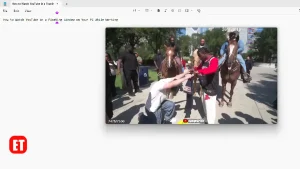
Your YouTube video is now playing in a floating window.
You can drag it anywhere on your screen, resize it to make it larger or smaller, and position it wherever it doesn’t interfere with your work.
The floating player stays above most applications, making it ideal for watching tutorials while coding, following a live football discussion, listening to music during work, or keeping an eye on a live stream while browsing other websites.
For example, while IShowSpeed’s stream continues playing in the corner of your screen, you can open Microsoft Word, Excel, Photoshop, WhatsApp Web, Discord, or even another browser window without interrupting the video.
It feels like having a mini television built directly into your desktop.
Why Use YouTube’s Floating Window?
Once you start using Picture-in-Picture mode, it’s difficult to go back to constantly switching tabs.
It’s especially useful if you regularly watch educational videos, coding tutorials, gaming livestreams, interviews, podcasts, or news broadcasts while completing other tasks.
Unlike browser extensions, this method is built directly into Chrome, Edge, and Brave Browser, so there’s nothing to install and nothing extra running in the background. It also works with both regular YouTube videos and live streams, making it one of the easiest productivity features available in modern web browsers.
Troubleshooting
If the Picture-in-Picture option doesn’t appear, make sure you’re clicking directly on the video player itself rather than somewhere else on the page. Remember that the trick requires two right-clicks—the first opens YouTube’s menu, while the second reveals the browser’s menu containing the Picture-in-Picture option.
It’s also worth checking that your browser is updated to the latest version, as older releases may not support the feature properly.
Frequently Asked Questions
Does this work on Google Chrome?
Yes. Google Chrome includes built-in Picture-in-Picture support without requiring any extensions.
Can I use it in Microsoft Edge?
Yes. Microsoft Edge supports the same feature because it’s built on Chromium.
Does Brave Browser support YouTube floating windows?
Absolutely. Brave Browser includes Picture-in-Picture support just like Chrome.
Can I watch YouTube Live in a floating window?
Yes. Live streams work exactly the same way as regular YouTube videos.
Do I need to install any browser extension?
No. Everything is built into your browser.
Can I resize the floating window?
Yes. You can drag the corners of the Picture-in-Picture window to make it larger or smaller.
Will the video stay on top of other applications?
In most cases, yes. The floating player is designed to remain visible while you switch between applications.
Does this work on Windows 10 and Windows 11?
Yes. The feature works on both Windows 10 and Windows 11 as long as you’re using a supported browser.
Editor Conclusion
Picture-in-Picture is one of those hidden browser features that can make a surprising difference to your daily routine. Instead of juggling tabs or keeping YouTube open on a second monitor, you can keep your favorite videos visible in a compact floating window while getting on with your work.
Whether you’re following an IShowSpeed livestream, learning a new skill through YouTube tutorials, or simply listening to a podcast in the background, the built-in Picture-in-Picture feature in Chrome, Edge, and Brave makes multitasking far more convenient—and the best part is that it only takes a few seconds to enable.

Erime Editor is the official editorial account of ErimeToday. Articles published under this name are created, reviewed, and managed by the ErimeToday editorial team to deliver helpful guides, technology tips, relationship advice, daily accurate word game answers, anime updates, gaming content, manga insights, news, and useful resources for readers around the world.